
The short answer
For a project skill, create .claude/skills/<name>/SKILL.md in the repository. For a personal skill, use ~/.claude/skills/<name>/SKILL.md. Add valid frontmatter and instructions, then open Claude Code and invoke /<name>. Copy supporting files and test the result, not just the file placement.
Choose project or personal scope
Claude Code discovers skills in different locations depending on how widely they should apply. Put a project workflow in the repository so its instructions can travel with the code. Put a personal workflow in your home directory when you want to use it across projects.
| Scope | Location | Use it for |
|---|---|---|
| Project | .claude/skills/<name>/SKILL.md | Workflows reviewed with the repository |
| Personal | ~/.claude/skills/<name>/SKILL.md | Your own reusable procedures |
Claude Code also supports skills delivered through plugins and other managed arrangements. This guide covers ordinary local directories. Consult Claude Code's official skills documentation for current discovery and precedence rules.
Start with project scope if the skill depends on this repository's build commands or product terminology. Avoid making those assumptions global: a useful procedure for one project can be misleading in another.
Create a small local skill
From the project root, create a directory for a skill named review-change. These commands use a Unix-like shell; on Windows, create the same directories and file with your editor or PowerShell.
mkdir -p .claude/skills/review-change
# Create .claude/skills/review-change/SKILL.md in your editor.
Save this file before starting the test:
---
name: review-change
description: Review a local code diff for correctness and regressions. Use when asked to review uncommitted changes.
---

# Review a change

Read the repository instructions and inspect the diff.
Trace affected callers and check error paths.
Report actionable findings with file locations.
State what you verified and what you could not verify.
Do not commit, push or deploy.
For personal scope, use ~/.claude/skills/review-change/SKILL.md instead. Do not put both copies in place merely to make discovery more likely; overlapping names complicate understanding which instructions the client selects.
Confirm discovery and invoke it
Open Claude Code in the project. Enter /review-change to explicitly select the skill. Claude Code can also select a skill based on its description when a task matches it, unless invocation controls disable that behavior.
Test against a small local change whose expected result you know. Check that the response follows the procedure, identifies the files it inspected and does not claim checks it never ran. Discovery is successful when the client recognizes the skill; workflow verification requires observing its result.
If the skill is absent from the command list, confirm the location, file name and frontmatter, then reload or start a fresh session. Check the installed client's documentation before assuming hot reload works for every kind of skill or plugin.
Install a community skill carefully
A community repository may contain several skill directories. Select the particular directory you need and review its complete content. Copy its supporting files along with SKILL.md; references and scripts may be required by the procedure.
- Identify the repository and the version or commit you reviewed.
- Read the frontmatter, instructions and any executable scripts.
- Check dependencies such as CLIs, shell commands and MCP servers.
- Inspect an existing target directory before replacing it.
- Test the installed skill on a limited task.
Do not treat a skill's instructions as permission to publish, access credentials or transmit private files. The task's authorization still matters. For a fuller explanation of the format, see what agent skills are.
Use Skiller to inspect and manage installations
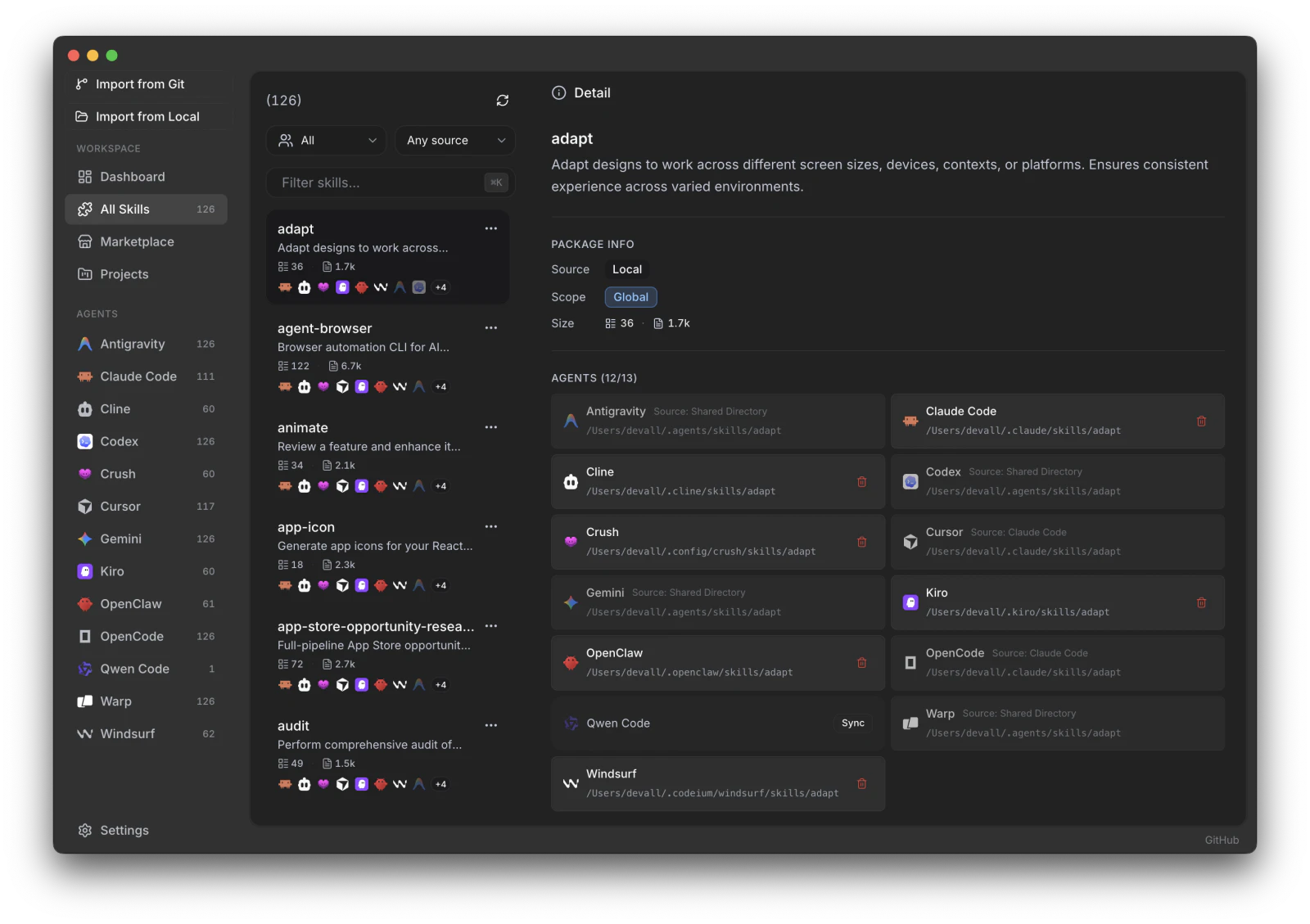
Skiller provides a desktop view of skills and detected coding agents. Its Skills Manager lets you inspect a skill's content and agent targets, edit SKILL.md with a Markdown preview and synchronize selected installations. The Marketplace supports discovering skills from skills.sh and ClawHub; additional sources can come from a Git URL or local folder.
Install Claude Code itself first, then open Skiller and confirm it is detected. A skills directory alone is not proof that the agent is installed. Inspect the destination before synchronizing, especially if it already contains your own version of the skill.
After installation, return to Claude Code for the invocation test. A successful copy in a manager does not demonstrate that the client discovered or followed the skill.
When the skill does not appear
Check the exact file name. It must be SKILL.md inside the skill's directory. A file named review-change.md directly under the skills root is a different arrangement.
Check the working directory. A project skill needs to be in the project context Claude Code is using. Opening a different checkout can mean looking at a different copy of the skill.
Check frontmatter and invocation controls. Use valid YAML. If you copied a skill with client-specific fields, inspect whether those fields restrict user invocation or automatic selection.
Check references and dependencies. A skill may appear but fail because it references a file that was not copied, or a CLI that is missing. Report that as an execution problem rather than a discovery problem.
If you also use Codex or Cursor, read how to share skills across agents before creating extra copies. Shared formats do not eliminate differences in discovery paths.
FAQ
Where do I install Claude Code skills?
For project skills, use .claude/skills/<name>/SKILL.md. For personal skills across projects, use ~/.claude/skills/<name>/SKILL.md. Keep supporting scripts and references inside the named skill directory.
Why does Claude Code not recognize my skill?
Check the directory, filename, frontmatter and description, then reload the client if needed. A discovered skill may still not be selected automatically if its trigger does not fit the task.
Can Skiller manage my Claude Code skill library?
Yes. Skiller provides a visual view of installed instructions and agent targets. After syncing to Claude Code, verify discovery and run a small representative task in the client.
Your skills. One place.
Inspect, edit and sync your skill library across coding agents.
Download Skiller